To access the router admin panel, enter the username and password. These credentials let you change router settings, update firmware, configure Wi-Fi, adjust security settings, and set parental controls.
If you cannot log in, first check your router’s label or manual for the default username and password. If those do not work, reset the router to factory settings. As a last step, visit the manufacturer’s website to find the credentials for your model.
This guide lists common default usernames and passwords for routers from all brands.
What Are Default Router Login Credentials?
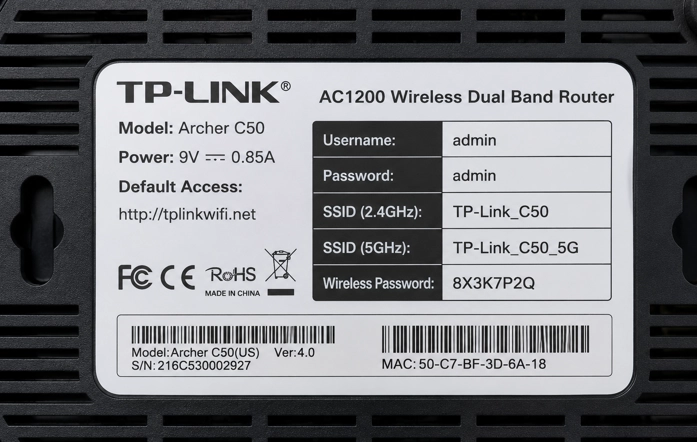
Default Router Login Credentials are the username and password set by the router manufacturer. A user needs these details as with them, they can access, manage, & change many details such as:
- Change WiFi passwords.
- Configure internet settings.
- Update router firmware.
- Improve network security
- Access router settings.
- Manage connected devices.
I am presenting the login credentials of various router brands. If you have not changed the login credentials before, then you can use these details.
Popular Router Username & Their Password List
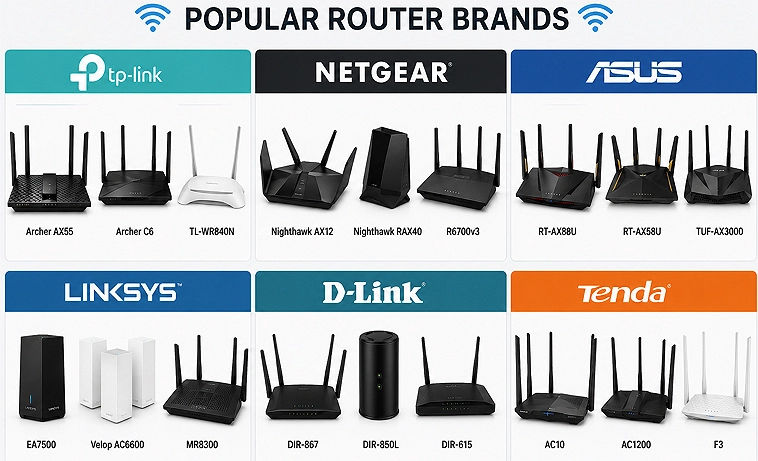
There are many router brands around the world, some of the popular ones are:
- TP-Link Router.
- Netgear Router.
- ASUS Router.
- Linksys Router.
- D-Link Router.
- Tenda Router.
- Arris Router.
- Motorola Router.
- Belkin Router.
- Huawei Router.
- ZTE Router.
- Xiaomi Router.
- Spectrum Router.
- Xfinity Router.
- AT&T Router.
TP-Link Router Default Login
Common login IPs that TP-Link uses:
- 192.168.0.1
- 192.168.1.1
| Username | Password |
|---|---|
| admin | admin |
ASUS Router Default Login
Common login IPs that the ASUS Router uses:
- 192.168.1.1.
- router.asus.com.
| Username | Password |
|---|---|
| admin | admin |
Netgear Router Default Login
Common login IPs that the Netgear Router uses:
- 192.168.1.1
- 192.168.0.1
| Username | Password |
|---|---|
| admin | password |
Linksys Router Default Login
Common login IPs that the Linksys Router uses:
- 192.168.1.1
- 192.168.0.1
| Username | Password |
|---|---|
| admin | admin |
D-Link Router Default Login
Common login IPs that the D-Link Router uses:
- 192.168.0.1
| Username | Password |
|---|---|
| admin | admin |
Tenda Router Default Login
Common login IPs that the Tenda Router uses:
- 192.168.0.1
| Username | Password |
|---|---|
| admin | admin |
Arris Router Default Login
Common login IPs that the Arris Router uses:
- 192.168.100.1
| Username | Password |
|---|---|
| admin | password |
Motorola Router Default Login
Common login IPs that the Motorola Router uses:
- 192.168.0.1
| Username | Password |
|---|---|
| admin | motorola |
| admin | password |
Belkin Router Default Login
Common login IPs that the Belkin Router uses:
- 192.168.2.1
| Username | Password |
|---|---|
| admin | admin |
Huawei Router Default Login
Common login IPs that the Huawei Router uses:
- 192.168.3.1
| Username | Password |
|---|---|
| admin | admin |
ZTE Router Default Login
Common login IPs that the ZTE Router uses:
- 192.168.1.1
| Username | Password |
|---|---|
| admin | admin |
Xiaomi Router Default Login
Common login IPs that the Xiaomi Router uses:
- 192.168.31.1
| Username | Password |
|---|---|
| admin | admin |
Spectrum Router Default Login
Common login IPs that the Spectrum router uses:
- 192.168.1.1
| Username | Password |
|---|---|
| admin | admin |
Xfinity Router Default Login
Common login IPs that the Xfinity router uses:
- 10.0.0.1
| Username | Password |
|---|---|
| admin | password |
AT&T Router Default Login
Common login IPs that the AT&T Router uses:
- 192.168.1.254
- attwifimanager
AT&T routers use unique login details; users can check them on the router’s backside label.
How To Find Your Router Username & Password?
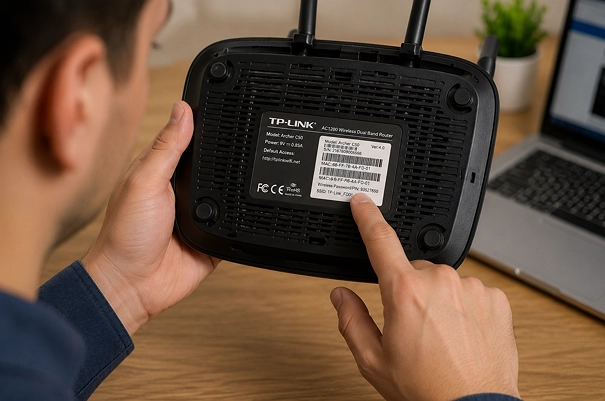
I have provided the default usernames and passwords for various router brands. If that doesn’t work, try these methods.
- Check The Router Sticker.
- Visit the Manufacturer Website.
- Check the User Manual.
Check The Router Sticker
All routers will have the default details on the back label.
- Default username.
- Default password.
- WiFi network name.
- WiFi password.
Visit the Manufacturer Website
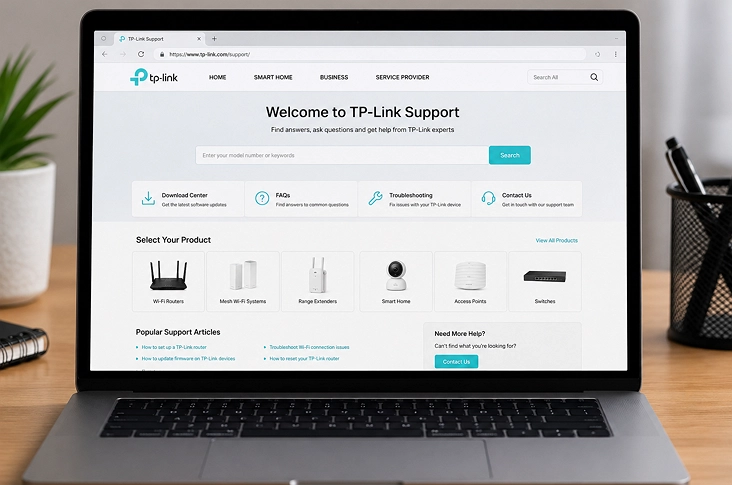
All router manufacturers have official websites, and on their customer support pages, you can find login information.
Check the User Manual
After purchasing the router, a user manual is included, and the default login information may be provided.
Forgot Your Router Password? Recover Now
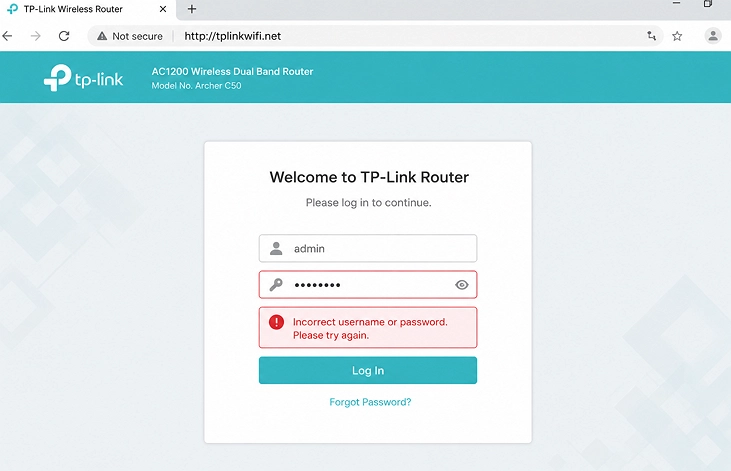
If you changed the router’s default password and forgot it, you’ll need to reset the router to reset the password.
How To Reset The Router?
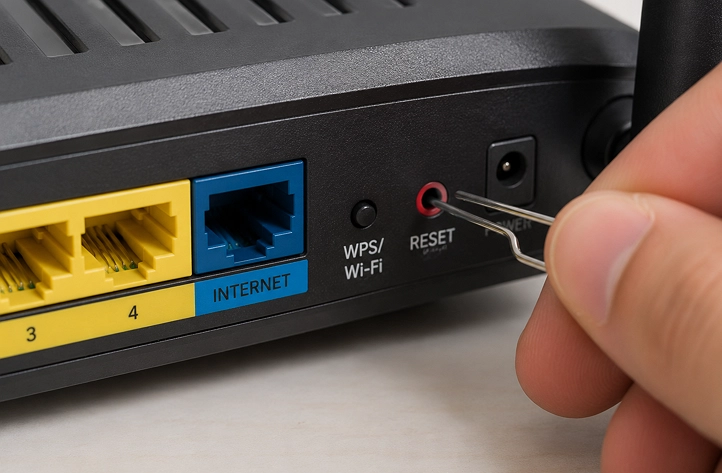
- Turn the router upside down and locate the reset button.
- Press and hold the reset button for 15 seconds.
- Wait for the router to restart.
- You are now back to the default login credentials.
Important Note: Resetting the router will remove any custom settings that you have made.
Important Security Tips
Log in to the router using the default credentials.
- Consider changing the default admin password.
- It’s a good idea to create a strong WiFi password that includes all character types.
- You may want to check for updates regularly and update the router firmware as needed.
- Enabling WPA2 or WPA3 security is recommended if available.
Frequently Asked Questions
Most of the router manufacturing companies use simple details for the username and the password:
Username: admin
Password: admin
This means the credentials you entered might be incorrect, or the admin/admin details might not be the router’s. Try with other details.
Get the router username and password from the backside of your router. Also, you can find the details on the router’s official website and in the user manual.
Yes, you can. By pressing the reset button, the router returns to its default state and resets to its default login credentials.
Conclusion
The default username and password make it easier for the user to access router settings during setup and troubleshooting. Many router brands use common credentials such as admin/admin, but login credentials may vary from one model to another.
As soon as you buy the router, it is recommended to change the default password for added security and to protect your home WiFi connection.